 Justility
Prepare a photo for an upload form
Check pixels and bytes, resize or compress, then inspect the downloaded image against your form’s requirements.
Start with the receiving form’s current instructions: accepted format, exact or maximum dimensions, and minimum or maximum file size. The sample below demonstrates dimensions, not official passport or biometric compliance.
Inspect the original
Enter the requested pixels and size range. Check the actual format, width, height and bytes before deciding what needs to change.
Open Image file requirement checkerSet pixels with a deliberate crop or padding
Choose the required width and height. Crop if removing edges is acceptable, or pad to preserve the entire image. Inspect faces, signatures and margins before export.
Open Photo & signature resizerMeet the maximum bytes if needed
Select the maximum KB and an accepted format. Keep dimension reduction off when the form requires exact pixels. A best-effort result marked unmet has not passed the limit.
Open Compress to sizeCheck the downloaded result again
Open the actual exported file, not the original. Check format, pixels and the whole size range, then view it at normal size for readability.
Open Image file requirement checker
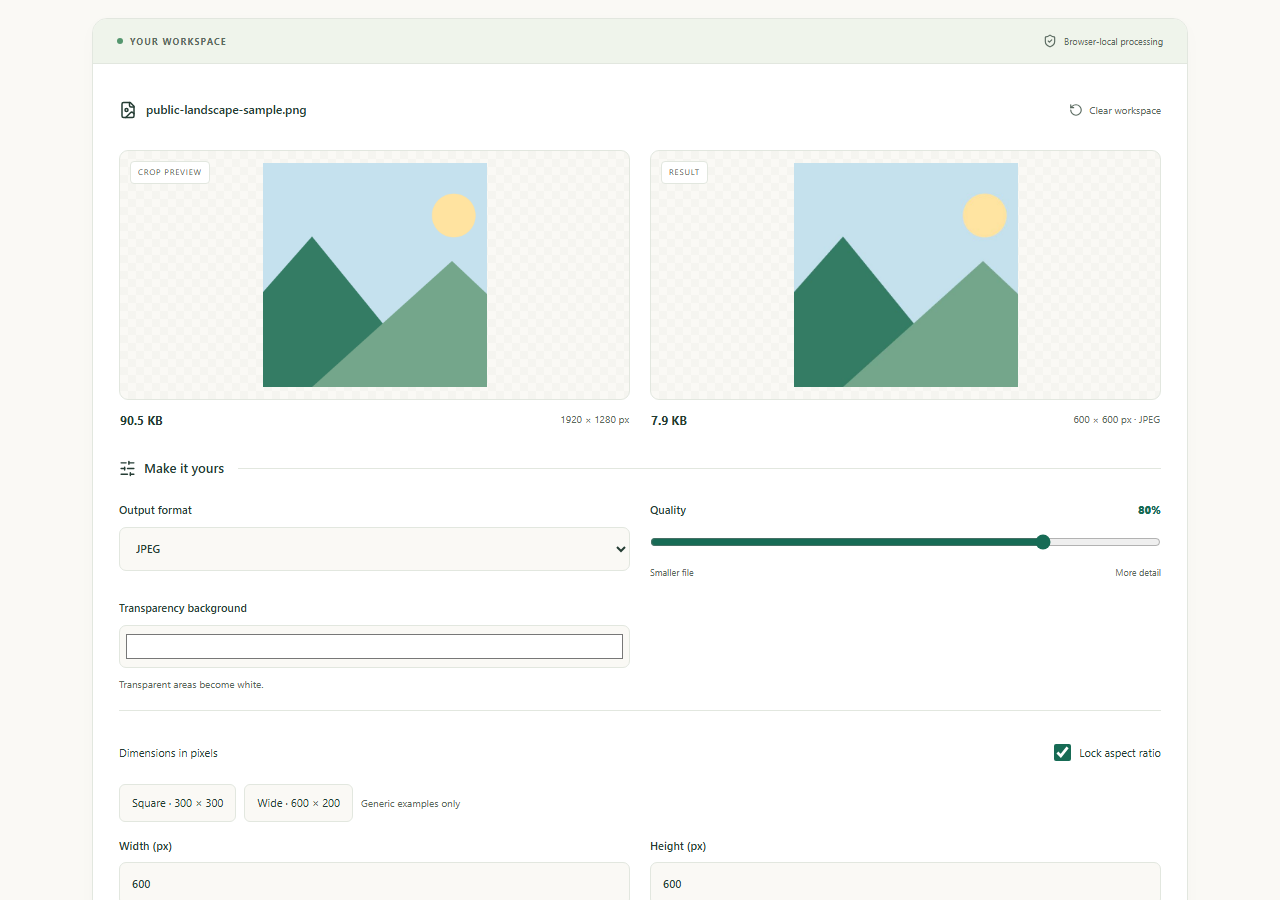
Worked example
Before
A public sample illustration at 1,920 × 1,280 pixels; an example form requests 600 × 600.
After
A 600 × 600 crop or padded output. Actual bytes depend on format, quality and image detail.
Check before you finish
Decimal KB means 1,000 bytes. Passing this checker does not guarantee that the receiving service accepts the photo. If privacy matters, inspect metadata separately with the image metadata tool.
Open Image metadata viewer & remover